Bottom line: the most damaging web development mistakes are not cosmetic imperfections. They are failures that break a critical customer journey, make search or measurement unreliable, create security or accessibility risk, or leave the team unable to release and recover safely. Fix those before polishing lower-risk details.
If you are auditing a business website, start with three questions: Can a person complete the job they came to do? Can search and measurement systems access and record the experience correctly? Can your team change the site and roll back safely? Those questions catch more consequential problems than a generic checklist of design pet peeves.
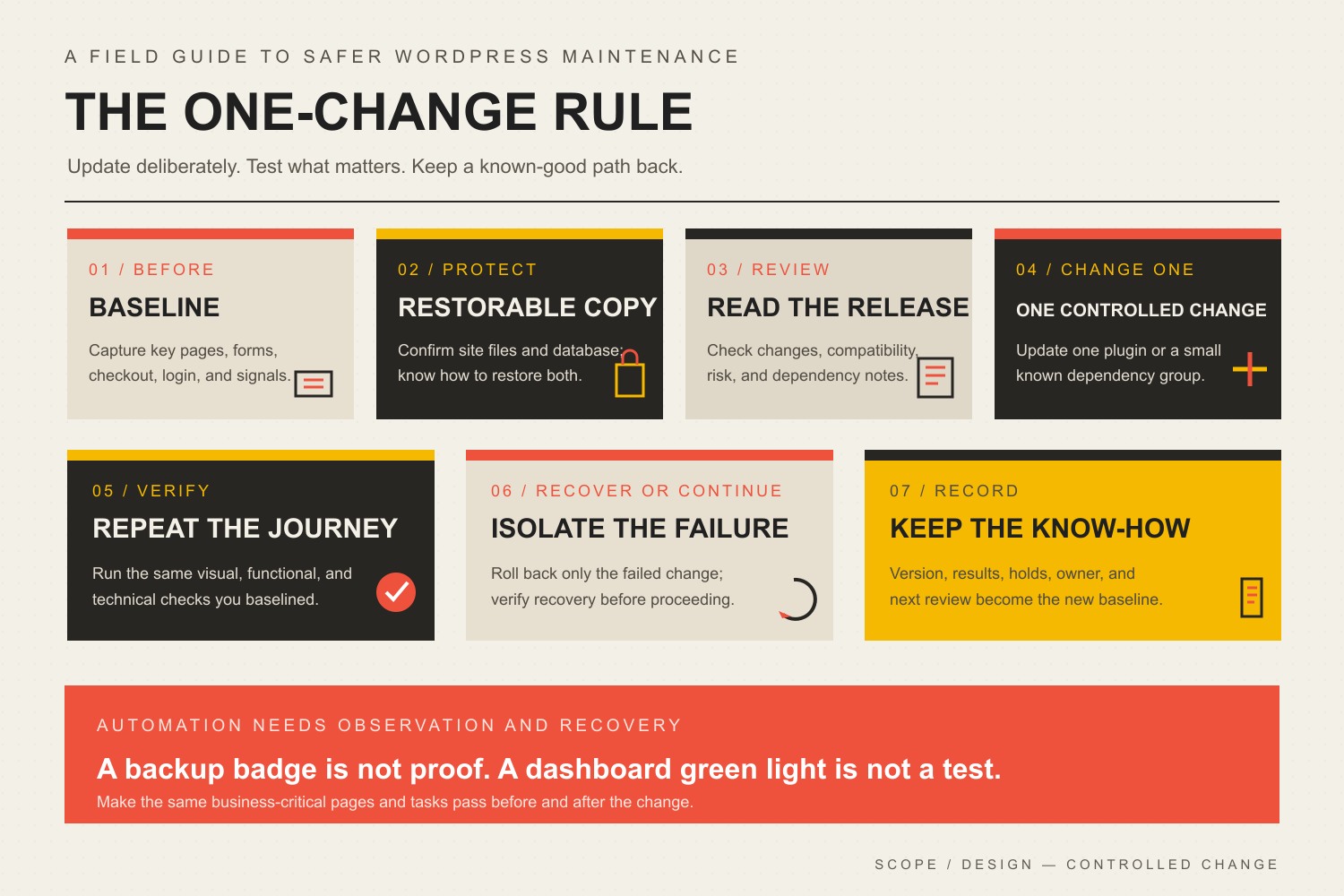
The safest way to handle WordPress plugin updates is to treat each update as a controlled production change: capture a working baseline, confirm a restorable backup, review the release, update one plugin or one understood dependency group, test the actual business journeys, and roll back only the change that failed. Clicking “Update All” is easy. Knowing what broke, restoring it cleanly, and proving the site works afterward is the job.
TL;DR: update promptly, but do not update blindly
Keep plugins current because updates can contain security patches, bug fixes, compatibility changes, and useful improvements.
Before changing production, confirm that you can restore both the site files and database.
Capture a baseline of important pages, forms, checkout, login, search, bookings, and integrations.
Update one plugin at a time when the site or plugin is high risk.
Test the things that make or save money—not just the homepage.
If an update fails, roll back that plugin, verify recovery, hold the known-good version, and continue with unrelated updates when it is safe.
Use automatic updates selectively. Automation without monitoring and recovery is just unattended optimism.
WordPress plugin updates matter because plugins are software running inside a larger software system. A release may fix a security issue, repair a bug, add compatibility with a newer WordPress or PHP version, improve accessibility, change an integration, or introduce a feature. Leaving every plugin frozen forever is not a stability strategy. It is technical debt wearing sensible shoes.
Updating does not automatically make a site faster, improve its SEO, or prevent every compromise. Those are the sort of muscular promises that look lovely in a sales deck and fall apart when someone asks for evidence. The honest reasons to update are simpler:
Security: a vendor may patch a disclosed or undisclosed vulnerability.
Reliability: releases often fix known errors, edge cases, and data-handling problems.
Support: vendors generally troubleshoot supported versions, not archaeological specimens.
Capability: updates may add features or improve workflows that the business actually uses.
The risk is not “updates versus no risk.” The choice is between managed change now and larger, less predictable change later.
WordPress provides both manual and per-plugin automatic update controls. Its documentation also warns that auto-updates can fail and recommends having current backups available for rollback. That is the correct frame: update the software, but own the recovery.
The Scope Design One-Change Rule
The Scope Design rule is simple: when the consequence of failure matters, change one diagnosable thing at a time.
That does not mean every brochure site requires a committee meeting before updating a tiny utility plugin. It means the size of the update batch should match the site’s risk, complexity, and ability to recover.
If 17 plugins update at once and the checkout breaks, you now have 17 suspects plus the theme, cache, PHP environment, database changes, and any integrations touched along the way. That is not efficiency. It is a group project where every suspect has an alibi.
For a business-critical site, the controlled sequence is:
Baseline: record what working looks like.
Protect: confirm backup, access, and rollback.
Review: understand the release and its dependencies.
Change: update one plugin or one deliberately grouped dependency set.
Verify: compare the site and test critical journeys.
Recover or continue: roll back the failed change or move to the next update.
Record: preserve the result, version, exception, and owner.
This is the plugin-specific application of the broader Scope Design Maintenance Proof Loop. The WordPress dashboard saying “Update successful” proves that an update process finished. It does not prove that a lead reached the inbox, a customer completed checkout, or the mobile menu still opens.
How to update WordPress plugins safely
1. Inventory the plugin and its business risk
Before updating, identify what the plugin touches. A cookie-banner add-on and the payment system do not deserve identical treatment.
page builder add-on, forms, SEO controls, caching, multilingual features
backup, review, controlled update, targeted functional test
High
ecommerce, membership, bookings, authentication, payments, CRM/ERP integration, custom data flow
staging when practical, one-change update, full journey test, immediate rollback access
Risk is contextual. A form plugin is medium risk on a hobby blog and high risk when every sales inquiry depends on it.
2. Confirm the backup is complete and restorable
A WordPress recovery point normally needs both the database and site files. The database holds content, orders, users, settings, and plugin data. The files include plugins, themes, uploads, and configuration. WordPress’s backup guidance treats both as necessary parts of a complete backup.
Before a consequential update, verify:
the backup completed recently;
it is stored somewhere other than the same server failure could destroy;
someone knows where it is;
the necessary hosting, database, SFTP, or control-panel access works;
the restoration procedure is documented;
the recovery point matches the moment before the update.
“Backups are enabled” is not the same as “we can restore this site.” A backup no one has tested is a theory with a timestamp.
3. Capture a working baseline
The baseline gives you evidence of the site before the change. Capture screenshots or visual comparisons of priority pages and record the status of critical functions.
At minimum, check:
homepage and primary service or product templates;
desktop and narrow-screen navigation;
contact, quote, registration, or lead forms;
checkout, payment, coupon, tax, shipping, and transactional email when relevant;
login, account, membership, or gated content;
search, filtering, calculators, maps, and booking tools;
consent controls and analytics events;
important third-party integrations;
current PHP and browser-console errors;
recent application and server logs when available.
The baseline prevents two expensive arguments: blaming the update for an old defect and dismissing a new regression as something that “probably looked like that already.”
4. Read the release before installing it
Review the plugin changelog, release notes, support notices, version jump, required WordPress or PHP version, and known compatibility issues. Pay special attention to:
major-version releases;
database migrations;
template overrides;
deprecated hooks or APIs;
changes to payment, authentication, or permissions;
changes affecting cached markup or generated assets;
companion plugins that must be updated together;
licenses or update channels that are no longer active.
Do not assume the dashboard compatibility label is a guarantee. It is one signal, not a signed affidavit from every plugin on the site.
5. Decide whether production or staging is the right first stop
Use staging when failure would affect revenue, data, customers, staff, or a high-stakes launch—or when the update changes a tightly coupled system. A staging site is also useful for major releases and neglected sites with a large update backlog.
Production can be reasonable for lower-risk updates when the site has a current backup, low complexity, reliable monitoring, immediate verification, and a clear rollback route.
The point is not staging theater. A stale staging copy that cannot reproduce production is a costume, not a test environment.
6. Update one plugin or understood dependency group
Use the WordPress Plugins screen, the Updates screen, a trusted management platform, or WP-CLI when the operator and environment support it. The button is not the strategic part. The scope of the change is.
For high-risk plugins, update one at a time. If a vendor documents that a core plugin and its add-ons must move together, treat them as one understood dependency group and record that choice.
Do not combine plugin updates with a PHP upgrade, theme replacement, caching migration, DNS change, and hopeful little database cleanup unless you enjoy debugging a murder mystery with no timeline.
7. Verify the same pages and journeys you baselined
Run the visual and functional checks immediately after the update. Compare like with like: same URL, viewport, login state, product, form, or workflow.
Check the logs as well as the pixels. Some failures are silent to the visitor but noisy in PHP logs, browser console errors, failed scheduled tasks, email queues, payment webhooks, or API responses.
If the site is clean, record the new version and continue. If it is not, stop the rollout and identify the smallest failed change.
8. Roll back only the failed plugin when possible
If one update introduced the regression, restore that plugin to the previous known-good version, then rerun the same tests. A full-site restore may be necessary after a database migration, corrupted update, or broader failure, but it should not be the reflex for every CSS glitch.
After recovery:
verify the site is actually back to its baseline;
hold the plugin at the known-good version;
document the failed version and evidence;
check vendor support and release notes;
continue unrelated updates only when the failure is isolated;
schedule a retest when a patched release becomes available.
That last point matters. One bad plugin release should not freeze every other plugin indefinitely.
When should you update plugins on a staging site?
Use a staging site first when the plugin is tightly coupled to revenue, customer data, authentication, custom code, or multiple integrations. Staging is especially useful for:
WooCommerce, payment, shipping, tax, or subscription changes;
memberships, learning platforms, and account permissions;
booking and inventory systems;
page builders or themes with broad template impact;
major-version upgrades;
plugins with custom templates, hooks, or extensions;
sites carrying a large update backlog;
changes during a campaign, launch, event, or seasonal sales period;
sites where even a short failure creates serious operational damage.
Staging must be representative enough to test the risk. Refresh appropriate code, settings, and sanitized data; preserve environment differences in the change record; and never trigger real customer emails or charges from a test site.
Should you enable automatic WordPress plugin updates?
Yes—selectively. WordPress supports per-plugin auto-update controls, and its auto-update documentation explains both the feature and its recovery behavior. The useful policy is not “automatic updates everywhere” or “automatic updates are terrifying.” It is automate the low-risk, observable changes and deliberately manage the high-risk ones.
Automatic updates are a reasonable fit when:
the plugin has low business impact;
the site has reliable offsite backups;
uptime and visual monitoring are active;
someone receives and acts on failure alerts;
the plugin has a stable release history;
rollback is quick;
critical journeys are checked on a schedule.
Disable or delay automatic updates for a specific plugin when:
it controls checkout, authentication, bookings, forms, memberships, or other critical journeys;
it has custom templates or custom code dependencies;
a release is known to be problematic;
staging and scheduled testing are part of the operating process;
the site is in a change freeze;
the vendor requires coordinated companion updates;
no reliable backup or rollback route exists.
Do not use a global update freeze as a substitute for management. If automatic updates are disabled, a named person and cadence must replace them.
What should you test after a WordPress plugin update?
Test what the plugin can affect and what the business cannot afford to lose.
Visual checks
priority pages at desktop and narrow widths;
headers, menus, popups, banners, forms, and footers;
typography, spacing, images, icons, and interactive states;
product, category, archive, search, and account templates;
logged-in and logged-out experiences when relevant.
Functional checks
submit forms and confirm receipt in the correct inbox or CRM;
complete a test purchase or booking using a safe test method;
verify payment, tax, shipping, coupons, inventory, and confirmation messages;
test login, password reset, registration, and permissions;
run search, filters, calculators, downloads, and uploads;
confirm transactional email delivery;
verify webhooks, API calls, and scheduled tasks;
check consent behavior and important analytics events.
Technical checks
PHP and server error logs;
browser console errors;
failed cron jobs and background queues;
cache generation and asset loading;
database migration notices;
uptime, response time, and unexpected redirect behavior.
The test list should live with the site, not in the head of whichever developer happens to be awake.
What should you do when a plugin update breaks the site?
Stop making additional changes. Capture the failure, identify the update that immediately preceded it, and choose the smallest safe recovery.
If the dashboard still works, deactivate or roll back the offending plugin through the controlled management route. If WordPress cannot load, use hosting, SFTP, command-line, recovery mode, or the documented emergency process available for that site. If the update changed the database or the damage cannot be isolated, restore the complete pre-update recovery point.
Then verify recovery using the baseline. Do not stop at “the homepage loads.” Test the broken journey, related templates, logs, and data.
If you suspect the problem is part of a compromise rather than an ordinary regression, use the website hacking detection and recovery guide instead of repeatedly reinstalling things and hoping the attacker becomes bored.
How often should WordPress plugins be updated?
Review available plugin updates at least weekly for a typical business site, and evaluate known security releases as soon as the alert arrives. The actual installation cadence should depend on urgency and risk:
Situation
Response
Confirmed security fix affecting the site
assess and patch promptly, with an accelerated controlled test
Routine bug-fix or minor release
include in the next scheduled maintenance window
Major version or database migration
review, stage when appropriate, test, and schedule deliberately
Known problematic release
hold the known-good version, document the exception, and monitor the vendor
Abandoned or unsupported plugin
replace or remove it; waiting harder is not a roadmap
Weekly review does not mean blindly installing every release every Friday at 4:58 p.m. It means somebody owns the queue and makes evidence-based decisions.
Plugin management starts before the update button
The safest plugin is often the one the site does not need.
Keep WordPress lean by reviewing:
whether every active plugin still has a business purpose;
whether inactive plugins should be removed;
whether multiple plugins duplicate the same job;
whether the vendor is active and the plugin remains supported;
whether licenses and update access are current;
whether customizations survive updates cleanly;
whether a plugin has become an operational single point of failure;
whether functionality belongs in a maintained custom plugin instead of scattered snippets;
whether account ownership and credentials belong to the client rather than a vanished contractor.
More plugins do not automatically mean a bad website. One enormous plugin can create more risk than ten small focused ones. Count is a crude signal. Ownership, quality, necessity, coupling, and recoverability are the useful questions.
DIY plugin updates or professional management?
DIY is reasonable when the site is simple, the owner understands the stack, backups and rollback work, critical journeys are documented, and someone has time to test the result.
Professional management becomes sensible when:
the website generates leads, orders, bookings, or member access;
the stack is complex or customized;
updates require staging or coordinated dependencies;
nobody internally owns monitoring and recovery;
failures must be handled quickly;
the update queue keeps becoming an archaeological layer;
the business wants evidence and accountability rather than another dashboard.
The value is not paying someone to click the same button. It is paying for risk classification, controlled change, testing, recovery, documentation, and a person who owns the result. The WordPress maintenance services buyer guide explains how to compare that responsibility before buying a care plan.
WordPress plugin update FAQ
Do WordPress plugins need to be updated?
Yes. Plugin updates can contain security fixes, compatibility changes, bug repairs, and useful improvements. Delaying every update indefinitely increases technical debt and can leave the site running unsupported software.
How often do WordPress plugins need to be updated?
Review the update queue at least weekly for a typical business website and assess security-related releases promptly. Install routine releases in a scheduled window; stage and test major or high-risk updates deliberately.
Is it safe to update all WordPress plugins at once?
It can be acceptable on a simple, low-risk site with a verified backup and immediate testing. On a complex or revenue-producing site, updating everything at once makes failures harder to isolate. Use one-plugin or small understood dependency batches instead.
Should I back up WordPress before updating plugins?
Yes, especially before consequential updates. Confirm the backup includes both database and files and that you know how to restore it. A scheduled backup that cannot be found or restored is not much of a safety net.
Can plugin updates break a WordPress site?
Yes. An update can conflict with WordPress core, PHP, a theme, another plugin, custom code, cached assets, or an external integration. That is why the process needs a baseline, testing, monitoring, and rollback.
Are automatic WordPress plugin updates safe?
They are appropriate for selected lower-risk plugins when backups, monitoring, alerts, and rollback are reliable. Business-critical or tightly coupled plugins usually deserve scheduled testing before production.
Should I update plugins on staging first?
Use staging for high-risk plugins, major releases, custom integrations, ecommerce, membership, bookings, authentication, or any site where a production failure would be expensive. Keep staging representative enough for the test to mean something.
What should I do if a plugin update breaks my site?
Stop other changes, capture the failure, roll back the offending plugin or restore the pre-update recovery point, and rerun the baseline tests. Then hold the known-good version and investigate the release before trying again.
Can I roll back only one WordPress plugin?
Often, yes, when the plugin did not perform an irreversible database migration and you have the previous version. If the update changed stored data or caused broader corruption, a complete restore may be safer.
Should inactive WordPress plugins be updated?
Inactive plugins should usually be removed if they are not needed. If an inactive plugin must remain installed for a legitimate reason, keep it current because its files still exist on the server and may still matter to security or recovery.
Does updating WordPress plugins improve SEO?
Not automatically. An update may fix errors, performance problems, structured-data bugs, or compatibility issues that affect search performance, but the act of updating is not an SEO ranking bonus.
What is the difference between plugin maintenance and website maintenance?
Plugin maintenance covers selection, updates, compatibility, testing, licenses, version holds, and removal. Website maintenance is broader: it also includes backups, uptime, security, content accuracy, forms, email, performance, domains, analytics, accessibility, and incident response.
Make plugin updates boring—in the good way
The best WordPress plugin update is uneventful because the process did its job. The baseline existed. The backup was real. One controlled change went live. The site passed the visual and business tests. The result was recorded. Nobody had to discover at dinner that checkout stopped working six hours earlier.
If your team can own that process, use it. If “update strategy” currently means waiting until the dashboard badge becomes emotionally uncomfortable, compare Scope Design’s WordPress support and maintenance plans or contact Scope Design to scope the actual risk.
Safe updates depend on maintainable architecture, ownership, staging, and recovery established before launch. Our business website development pillar explains those foundation requirements.
Responsive web design makes one website adapt its layout, content, controls, and media to the space and input method available without losing the task the visitor came to complete. The real test is not whether the homepage becomes narrower on a phone. It is whether a person can still understand the offer, use the navigation, complete the form, compare the options, buy the product, or get help without zooming, guessing, or inventing new profanity.
TL;DR: A responsive website preserves the task, not just the layout
Use flexible layouts, media, and typography instead of shrinking a fixed desktop canvas.
Let the content tell you where a breakpoint is needed; do not build the site around this year’s device catalogue.
Keep important content and functionality available at every useful width.
Test navigation, forms, tables, checkout, booking, search, embedded tools, and business handoffs—not only screenshots.
Include zoom, keyboard, touch, slow networks, real devices, and intermediate widths in the test plan.
Measure completed business journeys by device and browser. “It looked fine in my laptop simulator” is not a quality-assurance strategy.
In this guide
What is responsive web design?
Responsive web design is an approach in which a page responds to the viewing environment instead of assuming one fixed screen. MDN describes the foundation as fluid grids, fluid images, and media queries, while modern CSS adds flexible layout systems, intrinsic sizing, container queries, and fluid type.
Google’s current mobile documentation describes responsive design as serving the same HTML on the same URL while allowing the presentation to change with screen size. Google recommends it because it is generally the easiest mobile configuration to implement and maintain. That recommendation is useful, but search is not the entire job. A responsive page also has to work for a person who zooms a desktop browser, rotates a tablet, increases the default font size, uses a keyboard, or opens a narrow window beside another application.
Responsive design is therefore not a phone feature. It is the discipline of allowing content and functionality to survive changing space, capabilities, and interaction methods.
Responsive does not mean “everything gets smaller”
When a desktop layout is simply scaled down, the text becomes tiny, links become difficult to select, controls collide, and the visitor has to scroll sideways. That is a screenshot wearing a mobile costume.
A responsive layout may stack columns, change spacing, simplify a visual treatment, move supporting information, turn a comparison into a scrollable region, or replace a mouse-dependent interaction with an equivalent control. It may look different because the available space is different. It must not quietly remove the evidence, options, or action the visitor needs.
Responsive, adaptive, and separate mobile sites are not the same thing
These terms are often thrown into one bucket, which is convenient right up until somebody has to maintain the damn thing.
Approach
What changes
Typical strength
Typical risk
Responsive design
The same page and content respond fluidly through CSS and layout rules
One URL and one primary content system
Sloppy implementation can create bloated pages or hidden functionality
Adaptive design
The page selects among several defined layouts
Greater control at chosen ranges
Gaps between planned layouts and more variants to maintain
Dynamic serving
The same URL can return different HTML by user agent
Device-specific output
Detection, caching, parity, and testing become more complicated
Separate mobile site
Mobile content lives at another URL, often an m. subdomain
Can isolate an old mobile experience
Duplicate systems, redirect errors, missing content, and divided maintenance
Google supports multiple mobile configurations but recommends responsive web design for new sites. For most small and midsize organizations, one durable page is easier to govern than two versions that gradually disagree about what the company sells.
Use the Scope Design REFLOW test
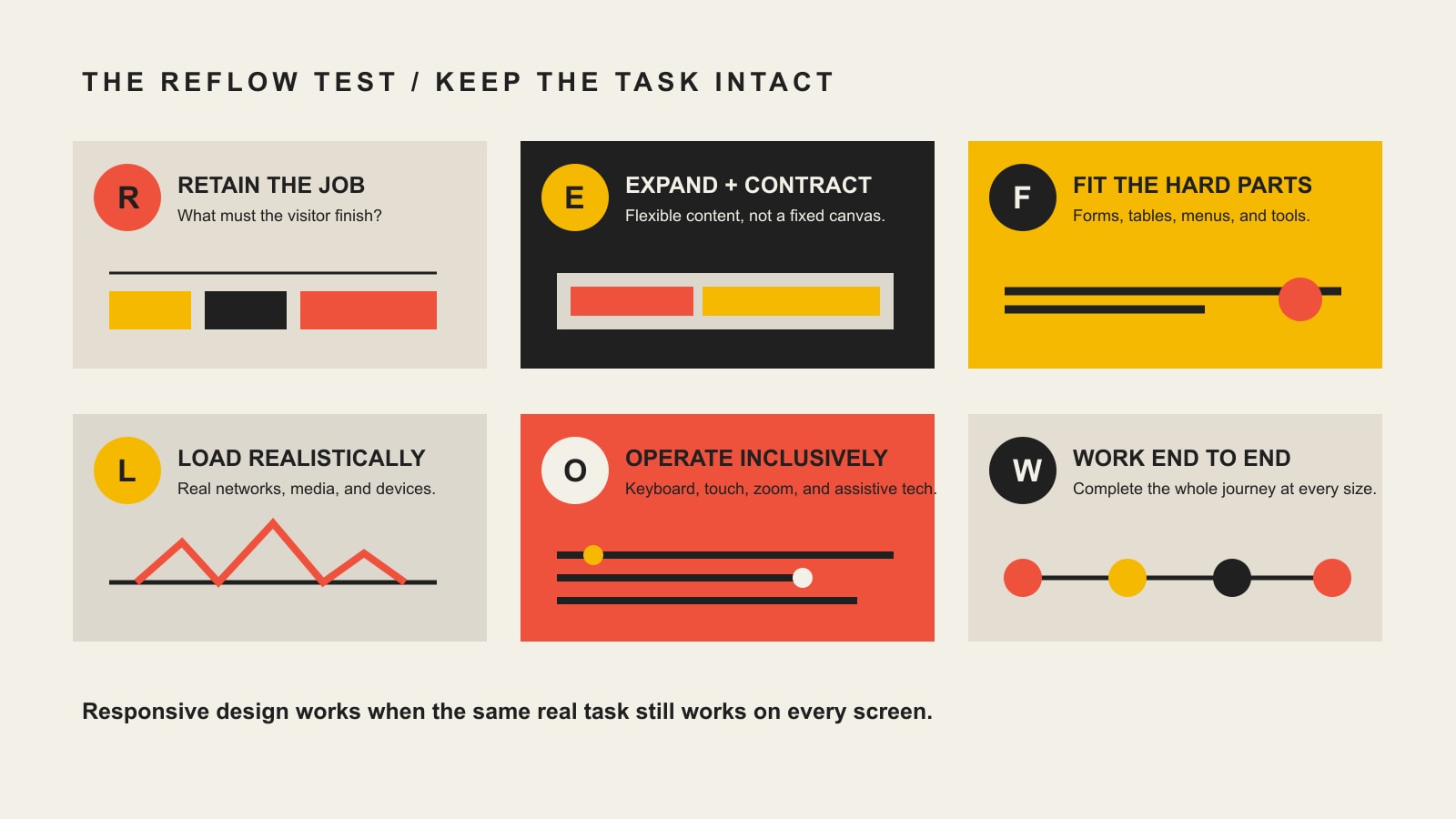
At Scope Design, we judge responsive work by task continuity. Our REFLOW test asks whether the page can retain its business job as the context changes.
Test
Question
Evidence
R — Retain the job
Does the same essential task remain available at every supported width?
The full journey can be completed without missing content or controls
E — Expand and contract
Does the layout adapt continuously rather than only at a few showroom widths?
No collision, clipping, unreadable line length, or accidental horizontal page scroll
F — Fit the hard parts
Do navigation, forms, tables, media, embeds, and long content still work?
Component-level checks with representative content and error states
L — Load realistically
Does the experience remain usable with mobile hardware and imperfect networks?
Appropriate assets, performance tests, and real-device checks
O — Operate inclusively
Can people use touch, keyboard, zoom, and assistive technology?
Reflow, focus, label, target, contrast, and input testing
W — Work end to end
Does the action reach the business system and human responsible for it?
Delivered form record, completed purchase, confirmed booking, or verified handoff
The Scope Design REFLOW test evaluates whether a responsive website preserves the real business task.
The last letter matters. A contact form that stacks beautifully but sends every submission into a dead mailbox is not responsive. It is well-aligned failure.
Start with the business task and real content
The most useful responsive-design question is not “What should the tablet breakpoint be?” It is “What must this person be able to understand and do?”
List the critical journeys before designing components. A service business might need visitors to understand who the service is for, compare options, see relevant proof, call, and submit a qualified inquiry. An ecommerce site may need product discovery, variant selection, cart review, payment, and confirmation. An internal application may need staff to find a record, edit it, and complete a workflow without losing context.
Then design with representative content. Use the longest plausible service name, an actual validation error, a real comparison table, an image with a difficult crop, and a navigation menu containing the sections the business truly needs. Placeholder text behaves impeccably because it has no job, no legal name, and no 47-character product option.
Our business website development guide explains the larger technical foundation. Responsive design owns how each journey survives changing space; the foundation owns whether the whole system keeps working.
Let content determine responsive breakpoints
A breakpoint is the point at which a layout needs to change. It is not a memorial plaque for a popular phone model.
MDN recommends flexible grids and content-driven changes: introduce a breakpoint when the content starts to look bad or a component stops working. A two-column section may collapse when either column becomes too narrow to read. A navigation pattern may change when the labels no longer fit. A row of cards may wrap naturally without any device-specific rule at all.
Standard widths remain useful as test samples, but they should not define the architecture. Device dimensions change. Browser chrome changes. Split-screen use changes the available viewport. User zoom can activate the same layout pressure on a large monitor that a small screen creates on a phone.
Mobile-first is a coding direction, not a content amputation plan
Mobile-first CSS commonly begins with the simplest narrow layout and adds complexity as space becomes available. This can reduce overrides and force useful prioritization. It does not mean the mobile visitor receives the children’s-menu version of the business.
Google uses the mobile version of content for indexing and ranking, and its mobile-first indexing guidance warns against omitting important content or requiring interaction before primary content loads. More importantly, customers need the facts whether they arrived with a phone or a projector.
Prioritize presentation. Do not delete the answer.
Build a flexible technical foundation
Good responsive behavior usually comes from several layers working together rather than a heroic pile of media queries.
Use a correct viewport and flexible layout
The viewport meta element tells mobile browsers how the page should map to the device width. Layouts should then use CSS Grid, Flexbox, percentages, min(), max(), clamp(), minmax(), and intrinsic sizing where appropriate instead of relying on fixed page widths.
The goal is not to ban pixels. Borders, icons, and minimum target dimensions may reasonably use them. The goal is to stop treating the whole page like a 1,440-pixel poster.
Make components responsive to their containers
Viewport queries answer questions about the page. Container queries can answer questions about the space a component actually receives. That distinction matters in modular sites where the same card, form, or callout may appear in a full-width section, a sidebar, or a grid.
A component should know what it needs, not assume where marketing will drag it next Tuesday.
Keep type readable without theatrical jumps
Fluid typography can interpolate between sensible minimum and maximum sizes. Line length, line height, spacing, and user zoom still need testing. A headline that scales beautifully but pushes the call to action four screens down is technically responsive and commercially unhelpful.
Our website font-size guide covers readable type, fluid sizing, zoom, and line-length decisions in more depth.
Deliver responsive images, not merely flexible boxes
CSS can stop an image from overflowing, but it cannot prevent a phone from downloading a giant desktop asset. Use srcset and sizes or the picture element when the browser needs image choices. Preserve explicit dimensions or an aspect ratio to reduce layout movement. Crop art direction intentionally when a narrow view changes what the image communicates.
Responsive design and performance overlap here, but they are not identical. Our website speed optimization guide covers measurement, Core Web Vitals, server response, scripts, fonts, caching, and the rest of the performance system.
Make the difficult components survive small screens
Most responsive failures do not occur in the pleasant three-card section shown in the design review. They occur where the business actually asks someone to do something.
Navigation
Keep the primary destinations discoverable. A collapsed menu needs a clear name, keyboard operation, visible focus, a reliable open and close state, and enough space for actual labels. Hover cannot be the only way to reveal essential information because a finger does not hover and neither does a keyboard.
Do not preserve every desktop navigation gimmick on mobile. Preserve the visitor’s ability to find the next step.
Forms
Use visible labels associated with their controls, logical field order, useful input types, autocomplete where appropriate, clear errors, and a submit button that remains reachable when the on-screen keyboard appears. W3C’s form-label guidance notes that labels above fields can reduce horizontal scrolling for mobile users and people with low vision.
Test the unhappy paths. Long error messages, conditional fields, address lookup, file upload, date selection, payment authentication, and a failed submission can break a form that looked perfect when every field was empty.
Then verify delivery. Submit the form and confirm the correct person or system receives a usable record. Pixels do not close leads; operational handoffs do.
Tables and comparisons
Do not make every data table pretend it is a stack of unrelated cards. Some tables need two-dimensional relationships to remain understandable. The W3C reflow guidance permits necessary two-dimensional content such as data tables to use its own scrollable region while the rest of the page reflows.
Possible treatments include prioritizing key columns, adding a controlled horizontal scroll with an obvious cue, offering a compact alternative, or restructuring a true list into cards. Choose based on meaning, not a blanket CSS recipe.
Checkout, booking, maps, chat, and embedded tools
Third-party interfaces are frequent offenders because their dimensions and behavior are not fully controlled by the page. Test cookie banners, scheduling widgets, payment frames, maps, video players, chat bubbles, consent tools, and CAPTCHA together—not as polite isolated demos.
Fixed elements can overlap each other, obscure the submit button, or leave six usable pixels of screen after the keyboard opens. Your vendors do not coordinate their floating widgets over lunch. You have to.
Responsive design is part of accessibility
Responsive implementation can help people using small screens, enlarged text, browser zoom, alternative input, or assistive technology. It can also create new barriers if information disappears or controls become difficult to operate.
WCAG 2.2 Success Criterion 1.4.10 requires most vertically scrolling content to work at the equivalent of 320 CSS pixels without loss of information or functionality and without two-dimensional scrolling. This is not simply a phone check; a 1,280-pixel desktop viewport at 400% zoom creates an equivalent width.
WCAG 2.2’s AA Target Size (Minimum) guidance uses 24 by 24 CSS pixels with defined exceptions and spacing provisions. The enhanced AAA criterion uses 44 by 44. Larger, well-spaced controls are often a sound usability choice, but do not casually call every target under 44 pixels a WCAG AA violation. Accuracy matters, especially when everybody is already anxious about compliance.
Responsive QA should also cover:
text zoom and browser zoom;
visible keyboard focus and sensible focus order;
controls that do not depend on hover or precise pointing;
labels, instructions, errors, and status messages;
color contrast in every component state;
motion preferences and orientation changes;
sticky elements that do not obscure focused content;
A layout can be responsive and still be miserably slow. Mobile devices may have less processing power, less memory, variable connectivity, and expensive data. Delivering the same enormous media and script bundle to every context defeats much of the point.
web.dev’s performance-audit guidance recommends testing on mobile as well as desktop, using constrained bandwidth and latency, inspecting responsive-image delivery, and using real hardware when simulation cannot reproduce the behavior.
Test the critical path on a representative midrange phone and a less-than-perfect connection. Watch for oversized images, third-party scripts, web fonts, video, long tasks, and components that shift while loading. Performance targets should apply to the actual business journey, not only the hero section of an empty page.
Responsive web design and SEO: what actually matters
Responsive design is Google’s recommended mobile configuration, not a magical ranking coupon. Google still needs crawlable content, useful pages, sensible internal links, valid metadata, and a site worth showing.
The SEO advantages are operational:
one primary URL for each page;
the same core content and metadata across screen contexts;
fewer opportunities for mobile redirects, canonicals, or structured data to disagree;
a maintainable experience for smartphone crawling and human visitors;
less chance that important content is missing from the version Google evaluates.
Google completed the transition to mobile-first indexing in 2023. That means the mobile rendering cannot be treated as a decorative afterthought. It does not mean “responsive” is a direct guarantee of rankings, traffic, or revenue.
How should you test a responsive website?
Use a risk-based matrix, then complete the real journeys.
1. Drag through the widths between the presets
Check continuously from narrow to wide. Presets such as 320, 375, 390, 768, 1,024, and 1,440 pixels are useful samples, not the whole universe. Awkward failures often live at the widths nobody put in the presentation.
2. Test representative browsers and devices
Start with analytics and audience requirements, then cover the major rendering engines and device classes that matter. Browser emulation is fast and useful. It does not reproduce every keyboard, safe-area inset, browser toolbar, font-rendering difference, memory limit, or touch behavior.
3. Test zoom, text enlargement, keyboard, touch, and rotation
Increase browser zoom to 400% on a 1,280-pixel viewport for the reflow check. Enlarge text. Navigate without a mouse. Rotate a phone or tablet. Try coarse touch. Confirm focus is visible and not hidden by sticky elements.
4. Use representative content and every component state
Test long labels, empty states, validation errors, success messages, open menus, modals, cookie banners, chat, translations, large data values, and user-generated content. The default happy state is the least demanding version of the interface.
5. Complete the business journey
Submit the inquiry, make the test purchase, schedule the appointment, download the file, search the catalogue, or update the record. Confirm the downstream system, email, payment, inventory, or staff handoff. A screenshot cannot prove that.
Layer
Example checks
Proof
Layout
Reflow, clipping, overlap, line length, safe areas
Segment important journeys by device category and, when volume supports it, browser or operating system. Look for differences in completed forms, purchases, bookings, errors, abandonment steps, and lead quality. A lower mobile conversion rate may indicate responsive friction, but it can also reflect different intent, acquisition sources, or buying behavior. Diagnose before declaring the CSS guilty.
Record a baseline before a major change. Test the same path afterward. Confirm that tracking fires once, at the correct completion point, and that the business received the outcome. Otherwise the dashboard may be celebrating a button click while the customer is staring at an error.
Should you retrofit the current site or redesign it?
Retrofit when the content, information architecture, platform, and core components are sound and the failures are localized. A focused repair may fix a rigid grid, images, typography, forms, navigation, or a handful of embedded tools without rebuilding the business website.
Redesign or rebuild when responsive problems are symptoms of a deeper system failure: desktop-only templates, duplicated mobile content, inaccessible component patterns, a page builder that cannot support the required behavior, inconsistent components across hundreds of pages, or business journeys that need to be rethought.
Use our website development process to define requirements, acceptance evidence, launch gates, and ownership before the build begins. A redesign should solve a diagnosed constraint, not merely replace old breakpoints with fashionable new ones.
Common responsive-design mistakes
Choosing breakpoints from device lists instead of component pressure.
Hiding essential content on narrow screens to make the page look cleaner.
Using fixed widths or heights that clip text and controls.
Downloading desktop-sized images while displaying phone-sized pixels.
Treating hover as a required interaction.
Making navigation compact but undiscoverable or inaccessible.
Testing empty forms but not keyboards, errors, autofill, or delivery.
Letting tables create horizontal scrolling for the entire page.
Stacking cookie, chat, booking, and sticky CTA widgets over one another.
Checking three screenshots instead of the widths between them.
Calling a page responsive before completing the business task.
Frequently asked questions about responsive web design
What are the three basic parts of responsive web design?
The classic foundation is a fluid grid, flexible media, and media queries. Modern implementations also use Flexbox, Grid, intrinsic sizing, container queries, fluid typography, and responsive image delivery.
Is responsive web design still necessary?
Yes. Screen sizes, window sizes, zoom levels, input methods, and device capabilities vary more than ever. Responsive design is now a normal foundation of web development, not a decorative trend.
What is the difference between responsive and mobile-friendly?
“Mobile-friendly” describes an outcome: the page is usable on mobile. Responsive design is one implementation approach, usually using the same URL and HTML with presentation that adapts to available space.
Is mobile-first the same as responsive design?
No. Mobile-first is a design or CSS workflow that starts with narrow constraints and enhances for larger spaces. A responsive system can be created from another direction, although mobile-first often produces cleaner base rules.
What breakpoint sizes should a responsive website use?
Use breakpoints where real content or components need a layout change. Device widths can be testing samples, but content should determine the architecture.
Can a responsive website use horizontal scrolling?
The page generally should not require scrolling in two dimensions. A component whose meaning requires two-dimensional layout—such as a data table, map, or diagram—may use a clearly contained horizontal scroll while surrounding content reflows.
How can I check whether my website is responsive?
Resize the browser continuously, use responsive developer tools, test representative real devices, zoom and enlarge text, navigate with keyboard and touch, and complete every important business journey. A responsive preview tool is a starting point, not proof.
Does responsive web design improve SEO?
It can reduce mobile configuration and content-parity problems, and Google recommends it as an easy pattern to implement and maintain. It does not replace useful content, crawlability, performance, authority, or a sound search strategy.
Should mobile pages have less content?
They may present or prioritize content differently, but important information and functionality should remain available. Hiding the evidence needed to decide is not mobile optimization.
How do responsive images work?
The browser can choose among image candidates supplied through srcset, sizes, or picture based on layout and device capabilities. CSS then keeps the selected image within its container.
Are 44-by-44-pixel touch targets required by WCAG?
Not as a blanket WCAG 2.2 AA rule. The AA Target Size (Minimum) criterion uses 24 by 24 CSS pixels with defined exceptions and spacing provisions; 44 by 44 belongs to the enhanced AAA criterion. Larger targets may still be the better usability decision.
Can WordPress websites be responsive?
Yes. The theme, blocks, page-builder templates, plugins, media, custom CSS, and embedded services all affect the result. A theme advertised as responsive does not guarantee that every page, form, table, or plugin interface remains responsive after real content is added.
How often should responsive behavior be tested?
Test during component development, content entry, prelaunch QA, and after material changes to themes, plugins, embeds, navigation, forms, or business workflows. Monitor important device and browser segments after launch.
Do I need to test on real phones if browser tools look correct?
Yes, for important journeys. Browser tools are efficient for layout exploration, but real devices expose on-screen keyboards, browser chrome, touch behavior, performance limits, safe areas, and vendor-specific quirks that simulation may miss.
Build for the task, then prove it works
Responsive web design is successful when the same business journey remains understandable, operable, and complete across relevant screens and interaction methods. If your site passes three device previews but fails the contact form after the keyboard opens, the design did not almost work. The lead is still gone.
If your website’s mobile experience feels like a desktop page being punished for shrinking, Scope Design can audit the critical journeys, identify the actual responsive failures, and build or repair the components that matter. Explore our website development service to start with requirements and evidence instead of another round of breakpoint roulette.
An open-source CMS gives you licensed access to use, inspect, modify, and redistribute the software under its license. That can create real freedom—but it does not automatically give your business a portable website, competent support, clean code, secure operations, or an easy escape from the developer who built it. Source-code access is useful. A usable exit is better.
TL;DR: Choose the operating model, not the label
Choose an open-source CMS when control, extensibility, hosting choice, a broad talent market, and long-term portability matter—and you can responsibly operate it.
Choose a proprietary CMS when the packaged workflow, vendor accountability, predictable support, and reduced operational burden are worth accepting platform limits.
“Free software” does not mean a free website. Hosting, implementation, maintenance, security, integrations, training, and migration still cost money.
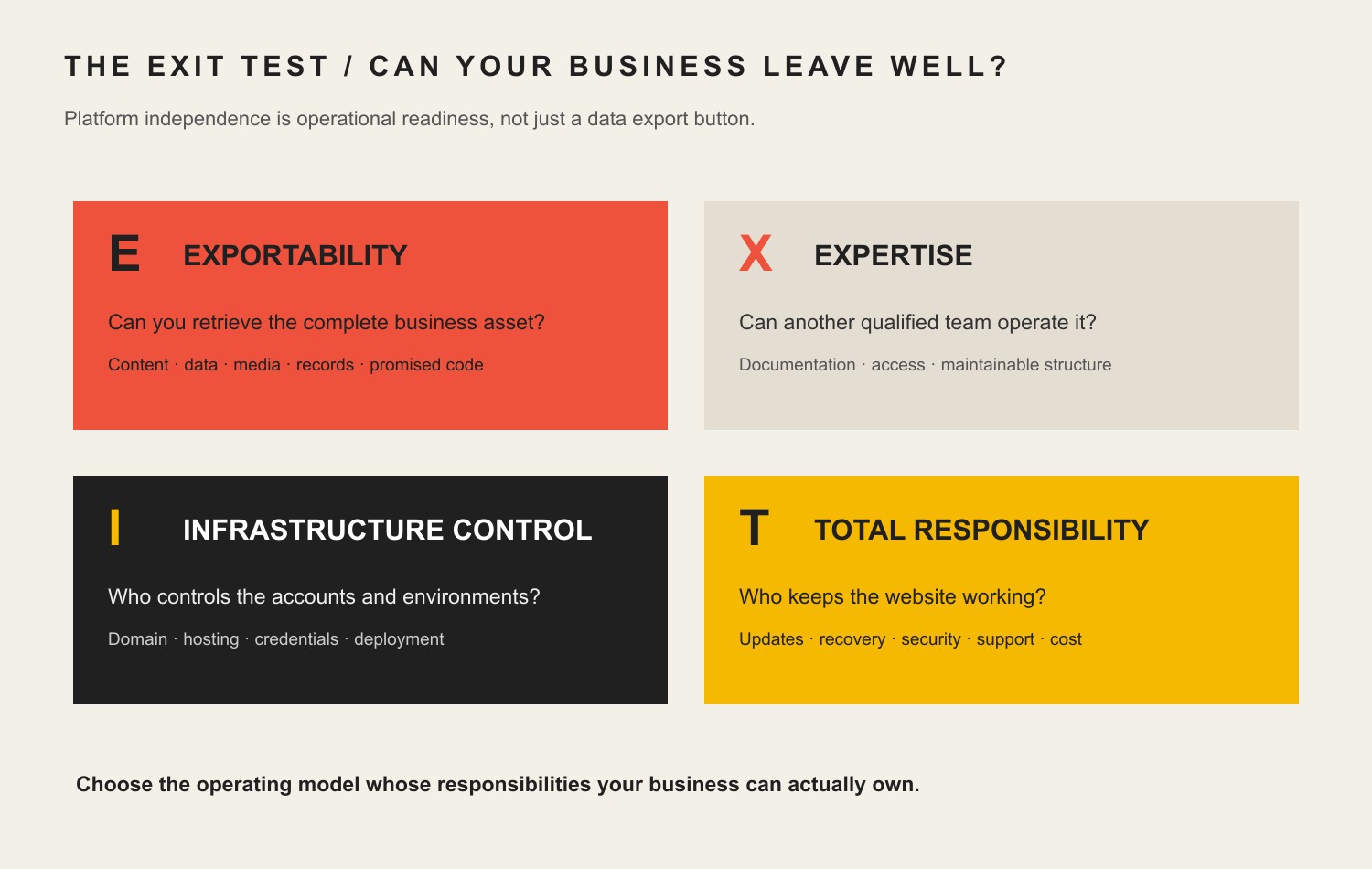
Run every option through Scope Design’s EXIT test: Exportability, eXpertise, Infrastructure control, and Total responsibility.
If you cannot explain how the business leaves the platform or service provider, you have not chosen a system. You have chosen a future hostage negotiation.
What is an open-source CMS?
An open-source content management system is CMS software distributed under a license that grants rights beyond simply using a vendor’s hosted product. The exact rights and obligations depend on the license.
The Open Source Initiative’s definition makes an important point: open source does not merely mean that somebody lets you look at the code. An open-source license must meet criteria covering source availability, redistribution, modification and derived works, non-discrimination, and technology neutrality.
WordPress is one familiar example. WordPress.org states that the software is licensed under GPLv2 or later. That license applies to the WordPress software; it does not magically settle every ownership question around your custom design, content, photography, domain, hosting account, premium-plugin licenses, data, or agency contract.
Those are separate assets and agreements. Treating them as one blob called “the website” is how businesses discover, during a breakup, that the domain lives in somebody’s personal account and the only copy of the custom code is on a laptop named DESKTOP-4J7QNOPE.
What is a proprietary CMS?
A proprietary CMS is controlled under a vendor’s license and terms rather than an open-source license. The vendor typically controls the source code, product roadmap, hosting model or approved environment, pricing, and supported extensions.
That category includes very different products:
hosted website builders;
software-as-a-service content platforms;
licensed enterprise CMS products;
vertical systems built for a particular industry;
agency-owned platforms available only through that agency.
Some proprietary systems provide excellent exports, APIs, integrations, service-level commitments, and support. Others let you export three CSV files and a folder of images, then wave cheerfully as the rest of your website disappears into the proprietary void.
The license category alone does not tell you whether a system is good. It tells you which questions to ask.
Open source and proprietary CMS comparison
Decision factor
Open-source CMS
Proprietary CMS
What the buyer must verify
Source code
Available under an open-source license
Usually unavailable or restricted
Which code is included, which is custom, and what license applies?
Hosting
Often portable across compatible hosts
May be vendor-hosted or restricted
Can you move, and what must change if you do?
Customization
Potentially extensive
Limited to supported tools, APIs, and vendor roadmap
Does the business need custom behavior, or merely want it?
Support
Community, agencies, internal teams, or paid vendors
Usually vendor or certified partners
Who has response obligations, at what hours, for which failures?
Updates
Site owner or service provider usually chooses and operates them
Vendor may operate some or all updates
Who tests compatibility, takes backups, monitors failure, and rolls back?
Security
Shared across software maintainers, hosts, site owners, developers, and users
Shared across vendor, customer configuration, users, and integrations
Where does the contract place each responsibility?
Data export
May offer built-in exports and direct database access
Varies widely by product and plan
Can you export complete, documented, usable data?
Cost model
Implementation and operations without a core license fee in many cases
Subscription or license plus implementation and operations
What is the three-to-five-year total cost, including exit?
Talent market
May have many independent specialists
May require vendor-specific skills or partners
Can another qualified team take over?
Product roadmap
Community, foundation, project leadership, and contributors
Vendor controls roadmap
What happens when a required feature is deprecated or repriced?
The Scope Design EXIT test for CMS independence
Before committing to a CMS, make sure the business has a credible exit. This applies to open-source and proprietary platforms.
The Scope Design EXIT test evaluates exportability, expertise, infrastructure control, and total responsibility.
Exportability: Can you retrieve the whole business asset?
Exportability is more than a button labeled “Export.” The business should know whether it can retrieve:
pages, posts, products, users, orders, submissions, and other structured records;
categories, tags, relationships, custom fields, and taxonomies;
original media files and their metadata;
redirects, SEO metadata, menus, reusable content, and configuration;
form definitions and submissions where permitted;
analytics, consent, personalization, and search data where applicable;
a database copy and uploaded files for self-hosted systems;
custom code, theme files, build instructions, and repository history promised by contract.
WordPress includes a built-in export tool for posts, pages, custom post types, comments, custom fields, terms, and users in its WXR format. Useful? Absolutely. A complete, push-button recreation of every plugin, setting, media derivative, server rule, integration, and custom workflow? No.
Test the export before you need it. An exit plan that exists only in a sales deck is not an exit plan.
eXpertise: Can another qualified team operate the system?
Open-source code can reduce dependence on one vendor, but only when other capable people can understand and operate the implementation.
Ask:
Is the stack common enough to hire for?
Is the custom code documented?
Are dependencies current and replaceable?
Are development, staging, and production environments defined?
Can a new team reproduce a deployment?
Are credentials stored appropriately rather than baked into files?
Does the business control the code repository where applicable?
Is knowledge held by a team or trapped inside one person’s head?
A WordPress site built from an obscure abandoned theme, 63 overlapping plugins, and undocumented custom snippets may be technically open source and operationally radioactive.
Infrastructure control: Who controls the accounts and environments?
The business should know who controls:
the domain registrar;
DNS and CDN accounts;
hosting and server access;
CMS administrator accounts;
email delivery and transactional services;
code repositories and deployment accounts;
analytics, advertising, search, and tag-management properties;
backup storage;
premium software licenses;
third-party APIs and integration credentials.
Control does not mean the owner must personally administer every system. It means the business can authorize, revoke, transfer, and recover access without begging a former contractor.
Our small-business web hosting guide explains why hosting should be judged as an operating system for the website rather than a cheap storage locker with a monthly invoice.
Total responsibility: Who keeps the website working?
Every CMS has an operating model. Somebody owns updates, compatibility, backups, monitoring, security response, performance, support, and recovery.
With an open-source CMS, the project may publish secure software, the host may secure infrastructure, plugin vendors may maintain extensions, and an agency may operate the website. The site owner still needs to know who connects those responsibilities.
With a proprietary platform, the vendor may operate more of the stack. The customer may still own account security, user permissions, content, privacy configuration, third-party scripts, integrations, domain settings, and business-process failures.
“The vendor handles security” is not a complete responsibility map. Neither is “our developer takes care of it.” Write down the boundaries.
What are the benefits of an open-source CMS?
Greater freedom to modify the software
An open-source license can allow a qualified team to inspect and modify the software rather than waiting for a vendor roadmap. That is valuable when the website supports a differentiating workflow, a required integration, unusual data, or a business process that cannot be responsibly forced into an off-the-shelf box.
Custom work should still earn its cost. The ability to modify everything is not an obligation to modify everything.
More hosting and service-provider options
Many open-source CMS platforms can run across multiple compatible hosting providers and be supported by independent specialists. That can create negotiating leverage and reduce dependence on one company.
The implementation can still introduce lock-in through custom infrastructure, undocumented code, exclusive licenses, or inaccessible accounts. Open-source software makes portability possible; architecture and contracts make it practical.
A broader ecosystem
Popular open-source projects may have extensive documentation, extensions, integrations, training, and specialist communities. Businesses can often choose among multiple agencies, developers, and managed-service providers.
Ecosystem size is not the same as ecosystem quality. A plugin directory full of abandoned add-ons is still full. Evaluate maintenance history, ownership, compatibility, documentation, and support.
Direct access to data and code in self-hosted deployments
A self-hosted implementation can provide database, file, and code access that is unavailable in many hosted products. This can improve integration, auditing, migration, and recovery options.
That access also creates responsibility. Database credentials and server access are not collectible trading cards. They need appropriate permissions, logging, backup, and security practices.
What are the disadvantages of an open-source CMS?
The operating burden does not disappear
Open-source software may have no core license fee, but the website still needs hosting, setup, design, development, updates, testing, security, backups, monitoring, support, and recovery.
The official WordPress hardening guidance emphasizes ongoing updates, backups, appropriate permissions, trusted software sources, and layered security. Installing an open-source CMS and walking away is not independence. It is neglect with a login screen.
Compatibility can become your problem
Core software, themes, plugins, custom code, server software, APIs, and browser behavior change. An update may fix a vulnerability and expose an old integration that was already hanging on by dental floss.
Updates need a process: review, backup, test, deploy, verify, monitor, and roll back when necessary. Our WordPress plugin update guide covers that process in detail.
Freedom permits bad architecture
An open system can be clean and maintainable. It can also become a dumping ground for customizations, duplicated plugins, mystery snippets, and permanent exceptions.
The upcoming modular-architecture decision is relevant here: reusable, governed components make change safer, while unlimited flexibility produces inconsistent pages and brittle code. Open source gives a team options. It does not give the team judgment.
Support can be fragmented
The host may blame the plugin. The plugin vendor may blame the theme. The theme vendor may blame the custom code. Everyone may be technically correct while the checkout remains broken.
A managed service or accountable technical owner can coordinate those layers. Without one, the business becomes the unpaid project manager for a very boring detective story.
What are the benefits of a proprietary CMS?
One vendor can own more of the stack
A well-run proprietary platform may combine hosting, updates, backups, support, editor tooling, and infrastructure under one accountable provider. That can reduce operational coordination and simplify procurement.
Read the service terms and support scope. “Fully managed” can mean anything from proactive operational ownership to “we keep the server powered on and wish you luck with your custom integration.”
Predictable workflows and guardrails
A closed platform may offer polished workflows, controlled extensions, consistent releases, and fewer ways for editors or developers to damage the system. For a straightforward business need, those constraints can be a feature.
The best system is not the one that theoretically does everything. It is the one that reliably does what the business needs without creating unnecessary operational drag.
Lower internal technical burden
When the vendor operates infrastructure and software releases, the customer may need less in-house platform expertise. That can be economically sensible for teams that do not want to own a software stack.
The tradeoff is dependence on the vendor’s product, pricing, roadmap, service quality, and survival.
What are the disadvantages of a proprietary CMS?
Platform limits can become business limits
The system may not support a required integration, data model, workflow, accessibility need, or performance requirement. Workarounds can become more expensive than the constraint they avoid.
Discovery should determine whether the business actually needs customization. Paying for unlimited flexibility “just in case” is wasteful. Discovering after launch that a critical workflow is impossible is worse.
Pricing and terms can change
The vendor can change plans, limits, transaction fees, feature availability, API access, partner requirements, or licensing terms. The business should model switching cost before treating the current price as permanent.
Migration may require reconstruction
Even when content exports exist, layouts, themes, application behavior, forms, member accounts, automations, product configuration, and integration logic may not transfer. Migration can be a rebuild because the destination platform represents the site differently.
That can also happen between open-source systems. Portability is always specific, never ceremonial.
Is an open-source CMS more secure?
Not automatically—and neither is a proprietary CMS.
Security depends on the software, maintenance process, hosting, configuration, extensions, users, credentials, monitoring, backups, incident response, and business context. Public source code can enable broad review and fast collaboration. It also allows defenders and attackers to study disclosed weaknesses. Closed code can reduce casual inspection while concentrating trust in the vendor.
The useful question is not “Can strangers see the code?” It is:
Who maintains it?
How quickly are vulnerabilities addressed?
How are updates delivered and tested?
Which extensions and integrations expand the attack surface?
Who monitors the live system?
What happens when something goes wrong?
Our website security guide explains the shared operating responsibilities without pretending a plugin or platform label can eliminate risk.
Is an open-source CMS free?
The software may be available without a license fee. The operating website is not free.
Calculate total cost across:
discovery and requirements;
information architecture and content migration;
design and development;
hosting and infrastructure;
premium extensions, services, or support;
integrations and data work;
accessibility and quality assurance;
training and documentation;
updates, monitoring, backups, and support;
incident response and recovery;
future enhancements;
migration or exit.
A proprietary subscription may be cheaper than operating an open-source stack for a simple use case. An open-source implementation may be cheaper than forcing a complex business into expensive licenses and vendor constraints. Anyone giving you the universal answer before discovery is guessing with your money.
When should a business choose an open-source CMS?
Open source is often a strong fit when:
the business needs control over hosting, code, or data access;
multiple qualified providers should be able to support the system;
custom integrations or structured content are strategically important;
the website must evolve beyond one vendor’s roadmap;
the organization can fund responsible maintenance;
a credible export, handoff, and recovery process can be established;
the chosen project’s ecosystem and governance are healthy.
It is a weak fit when the business wants software freedom but refuses the cost of operating software.
When should a business choose a proprietary CMS?
A proprietary CMS can be the right fit when:
the requirements align closely with the product;
speed and operational simplicity matter more than deep customization;
the vendor provides meaningful support and accountability;
the pricing remains sensible across realistic growth;
integrations and exports are sufficient;
the business accepts the platform roadmap and constraints;
the exit cost is understood and tolerable.
Closed does not mean bad. Open does not mean virtuous. Both can be implemented brilliantly or sold by somebody waving a feature checklist like a magician’s cape.
Questions to ask before choosing any CMS
What business process and customer decision must the CMS support?
What content, data, media, configuration, and code can we export?
Can another qualified provider operate the implementation?
Who controls the domain, hosting, accounts, repository, licenses, and backups?
Who owns updates, compatibility testing, security monitoring, support, and recovery?
Which capabilities are native, extended, custom, or dependent on third parties?
What breaks if the vendor, plugin, theme, developer, or integration disappears?
What is the three-to-five-year total cost under realistic growth?
What are the documented platform limits?
What does an exit require in time, money, data conversion, and reconstruction?
These questions belong in the website development process before design screens and plugin shopping. The requested deliverable is not always the actual constraint.
Frequently asked questions about open-source CMS platforms
What are examples of open-source CMS platforms?
WordPress, Drupal, Joomla, and Ghost are widely known open-source CMS projects. Their licenses, architectures, ecosystems, hosting options, and operational requirements differ, so “open source” is a category—not a product recommendation.
Is WordPress open source?
Yes. WordPress.org states that the WordPress software is licensed under GPLv2 or later. A particular WordPress website can still depend on separately licensed services, premium extensions, custom contracts, and provider-controlled accounts.
What is the main benefit of an open-source CMS?
The main benefit is licensed freedom to use, inspect, modify, and redistribute the software, combined in many cases with provider and hosting choice. The business value appears only when the implementation remains exportable, supportable, controlled, and maintained.
What is the biggest disadvantage of an open-source CMS?
The biggest disadvantage is operational responsibility. Somebody must coordinate hosting, updates, compatibility, extensions, security, backups, performance, and recovery. When nobody owns the whole system, freedom becomes fragmentation.
Does open source eliminate vendor lock-in?
No. It can reduce licensing and platform lock-in, but an implementation can still depend on one developer, inaccessible accounts, undocumented custom code, proprietary extensions, custom infrastructure, or a difficult data model. Run the EXIT test on the implementation, not the logo.
Do I own my website if it uses open-source software?
Not automatically. Ownership and control may be split across the software license, content, design assets, custom code, domain, hosting, data, accounts, premium licenses, and contract deliverables. Document each asset explicitly.
Can I move an open-source CMS to another host?
Often, but compatibility and access determine whether it is practical. You need the files, database, configuration, credentials, licenses, DNS control, and a destination that supports the stack. Custom infrastructure can make a theoretically portable site expensive to move.
Is a proprietary CMS safer because the vendor manages it?
Vendor management can reduce some operational burden, but security remains shared. Customers still manage users, permissions, credentials, content, scripts, integrations, privacy settings, and business workflows. Verify the contractual and technical boundary.
Which CMS is best for a small business?
The best CMS is the smallest system that supports the business’s real content, workflows, integrations, growth, ownership requirements, and maintenance capacity. A simple managed platform may beat a custom stack. A well-managed open-source CMS may provide better long-term control. The answer depends on the operating model.
What should a CMS migration export include?
It should include all required structured content, media, metadata, users where appropriate, relationships, redirects, SEO data, forms and submissions where permitted, product or transaction data, configuration, code promised by contract, and documentation needed to rebuild the operating system around the content.
How often should an open-source CMS be updated?
There is no responsible universal calendar. Security releases may need rapid action; feature and compatibility updates may require staged testing. Establish monitoring, backups, test coverage, deployment, verification, and rollback instead of relying on a monthly reminder and optimism.
Can Scope Design manage an open-source CMS after launch?
Scope Design provides WordPress support and maintenance plans covering an agreed operating scope. The exact responsibility boundary should be documented so hosting, updates, backups, monitoring, security response, edits, licenses, and integrations do not fall into the gap between vendors.
Choose a CMS you can operate—and leave
The open-source versus proprietary debate becomes useful when it stops being ideological. Your business needs a system that supports the customer journey, fits the team’s capacity, protects the assets you care about, and has a credible future.
Scope Design evaluates the platform, implementation, accounts, responsibilities, and exit together. If you are choosing a CMS or trying to escape one, our website development team can help map the decision before a sales demo turns into a five-year architecture plan.